Support
0
Contact us
Nederlands
Deutsch
Español
Dedicated serversFlexible VPSCloud TechnologyColocationChallenges in ITSectorsNews & Blogs
Cloud Compute

With Cloud Compute, you have access anytime and anywhere to a portal through which you can configure your entire IT environment from wherever you are in the world.

Cloud Storage

Reliable access to your files, infrastructure, and applications at all times – with no interruptions or delays. At Worldstream, we offer a variety of storage solutions.

Flexible cloud icon
Flexible cloud
Private cloud icon
Private cloud
Bare metal icon
Bare Metal Compute
Hollow cube icon
Object storage
Hollow cube icon
File storage
Block storage icon
Block storage
Backup storage icon
Backup storage
Need support?

With experienced engineers and an average response time track record on 7 minutes, you can expect a solid technical support solution in next to no time.

Support
All Servers

Choose your Dedicated Server now. Custom or Instant Delivery. Powerhouse servers built for your use case.

Use Cases

Whatever your use case, we’re here to help you find the ideal solution.

Deal servers icon
Deals
AMD servers icon
AMD Processors
AI servers icon
Intel Processors
Hollow cube icon
Virtualisation, Containerisation and Orchestration
Hollow cube icon
Websites and Applications
Hollow cube icon
Gaming and Streaming Infrastructure

24/7/365 support with an average response time of just 7 minutes. Thanks to our own data centers, our engineers can go directly to your server for fast, hands-on assistance. Email or call us anytime.

Support
Flexible VPS

Cloud servers from €5.19 per month, pay-per-use and live in minutes.

Flexible VPS add-ons

Extend your VPS. A load balancer spreads traffic across several VPSs.

Hollow cube icon
Standard
AMD servers icon
Performance
Hollow cube icon
Load Balancer
Need support?

With experienced engineers and an average response time track record on 7 minutes, you can expect a solid technical support solution in next to no time.

Support
Smart outsourcing

Some IT creates added value, while other types are supportive. Use that as a starting point for outsourcing.

Cost Efficiency

Complete IT packages may seem like the safe option, but when you consider the costs, other choices often make more sense.

IT flexibility & control

Outsourcing doesn’t mean losing control; it actually provides more flexibility and control.

Cloud repatriation

The cloud is not a final destination: You should continuously evaluate and adjust your cloud environment as needs evolve.

Financial services
Logistics & Transportation
Retail & E-commerce
Media & Entertainment
Tech & Software Development
Security
Managed Service Providers
Need support?

With experienced engineers and an average response time track record on 7 minutes, you can expect a solid technical support solution in next to no time.

Chat with usContact us
About WorldstreamAbout the technologyCasesKnowledge base
About usMeet the teamJobsBecome a resellerCertificationsOur data centersOur networkDDoS ProtectionAMD EPYC serversTechnology PartnersOperating SystemsAll casesEasyTerraDutch Drone CompanyPerfGridArticlesFAQNews and BlogsProducts and Services
Contact us

Call +31 (0) 174 – 712 117

Industriestraat 53, Naaldwijk

Contact us
Worldstream Portal
Nederlands
Deutsch
Español
0
Dedicated serversFlexible VPSCloud TechnologyColocationChallenges in ITSectorsNews & BlogsAbout WorldstreamAbout the technologyCasesKnowledge baseMy Worldstream
Contact
Support
NederlandsDeutschEspañol
  1. HomeHome
  2. Knowledge Base
  3. Networking
  4. Load Balancer in Portal: what it is and how to create one

Load Balancer in Portal: what it is and how to create one

Applies to Load Balancer, Firewall, Flexible VPSAudience All customersLast reviewed October 2026Status New

Quick answer

A Worldstream Load Balancer sits on an existing firewall and publishes services on that firewall’s public IP. There is no extra load-balancer VM and no extra public IP. Create one under Networking & Security → Load Balancers → Create load balancer, then add a pool, a real server, and a listener.

On this page
  • What you need first
  • Create a load balancer
  • After it is Active
  • What this product does not do

The Portal load balancer is an add-on on your HA firewall, not a standalone appliance. Visitors connect to a public IP that already belongs to the firewall. The load balancer then spreads that traffic across VPS instances behind the firewall.

One load balancer attaches to one firewall. The sidebar item is Load Balancers, under Networking & Security. If you do not see it, the Load Balancer product is not enabled on the account yet.

For the idea of health checks, algorithms, and sticky sessions, see Understanding load balancing. This article is the Portal product.

What you need first

  • An active Firewall with at least one ready public IP. Create that under Firewall if you do not have one yet; see Firewall basics in Portal.
  • A billing agreement. Create is blocked until payment is set up, the same way other paid services are.
  • Backend VPS instances on a network attached to that firewall. Those guests must use the firewall as their default gateway. The load balancer does not rewrite source addresses, so return traffic has to go back through the same firewall.

Note: Creating a load balancer resizes the firewall pair to fit the plan, one leg at a time. NAT and VPN traffic on that firewall sees a short interruption (about two seconds) while the first leg hands over.

Create a load balancer

1

Open Load Balancers

In Portal, go to Load Balancers and select Create load balancer.

2

Name it

The default name is load-balancer. Change it if you want a name you will recognise in the list later. There is no rename action after create.

3

Choose a plan

Each plan card lists bandwidth, concurrent connections, included traffic, and the limits for listeners, servers, and certificates. All load balancers on your account share one plan. After the first one exists, change the plan on an existing load balancer under Settings. For which size to pick, and the limits and terms, see Load balancer plans, limits and conditions.
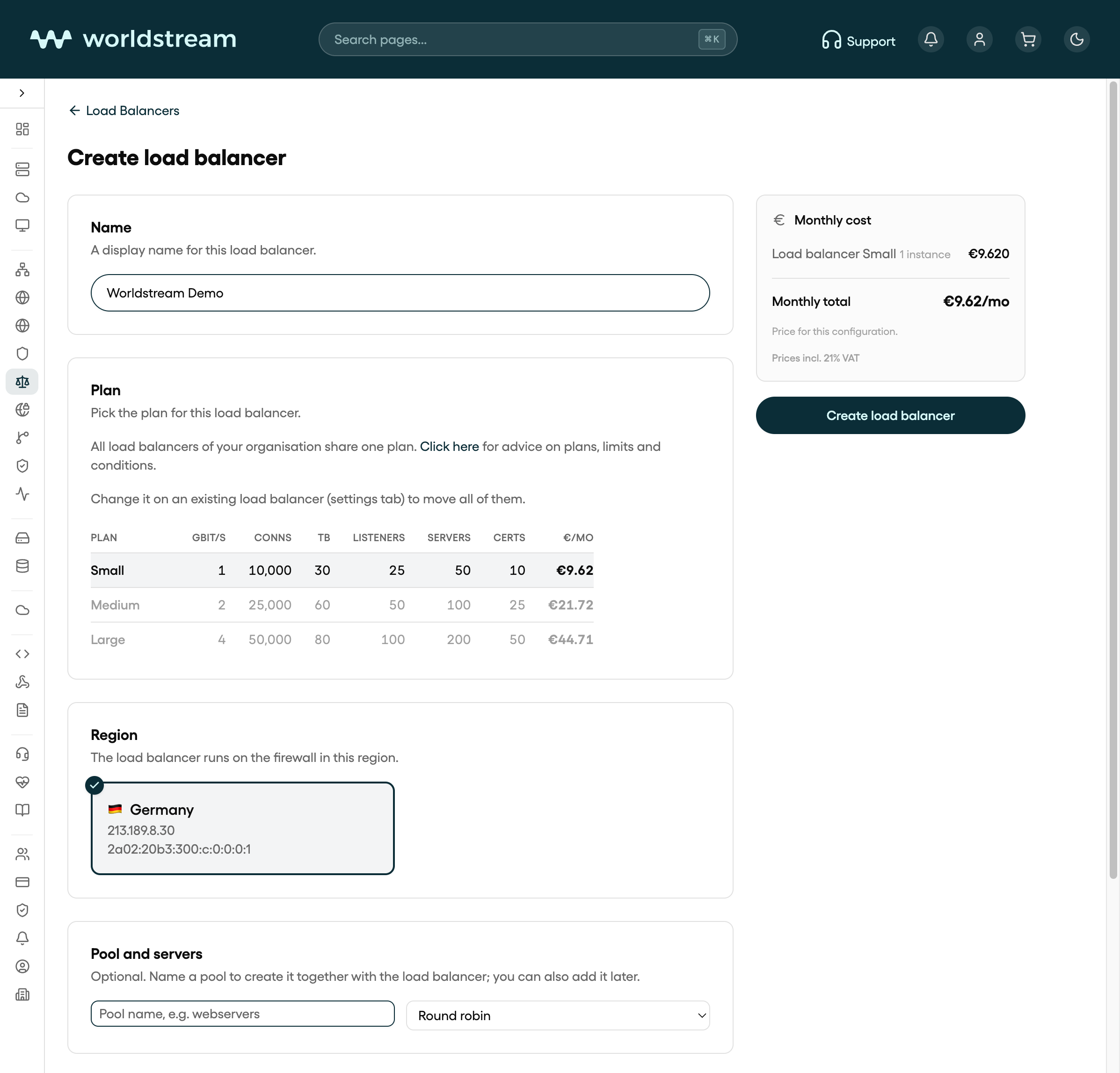
Create load balancer in Portal: name Worldstream Demo and Small, Medium, or Large plan
Create load balancer in Portal, October 2026. Name, plan, then the firewall. Your own firewalls will differ.
4

Bind the firewall

Under Region and firewall, pick the firewall that should carry this load balancer. Firewalls that already have a load balancer are not offered. If the list is empty, create or extend a firewall first.

5

Optionally add a pool and listeners

The create form can also take a first pool, real servers, and listeners. You can skip that and add them on the load balancer after it is Active. Confirm Create load balancer.

6

Wait until the status is Active

Create returns immediately. The load balancer moves through Syncing until it is Active. Error means the last apply failed; the firewall’s own NAT and filter rules are left alone. Use Re-apply on the Dashboard tab after you fix the config.
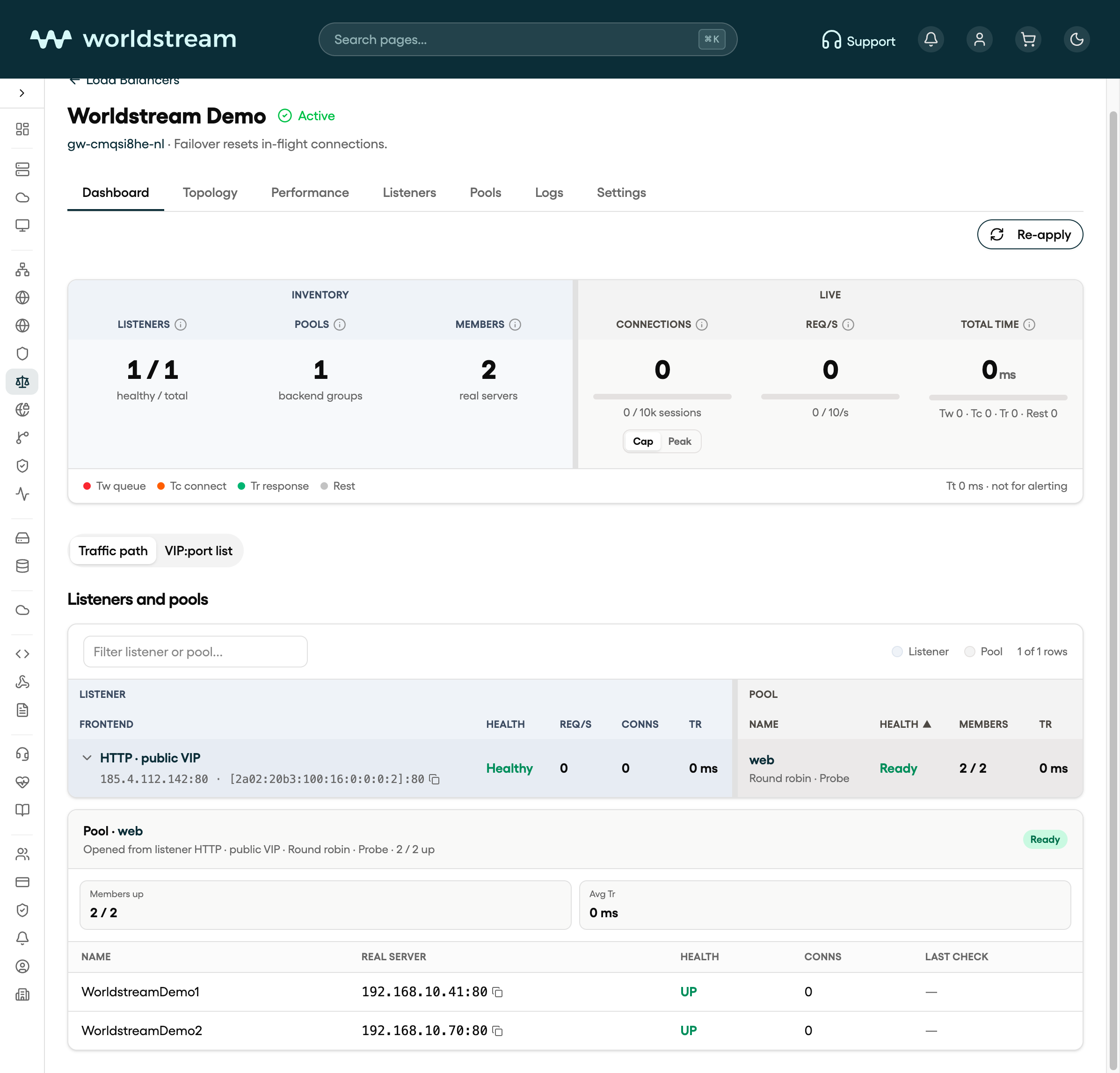
Load balancer Dashboard in Portal after the load balancer is Active, with pool web and WorldstreamDemo1 and WorldstreamDemo2
Load balancer Dashboard in Portal after the load balancer is Active, October 2026. Your own names, IPs, and counts will differ.

After it is Active

The load balancer page has these tabs:

TabWhat it is for
DashboardCounts, live connections, the VIP-to-member map, and Re-apply
TopologyHow listeners, pools, and real servers connect
PerformanceRequest rate, bandwidth, connections, and HTTP 5xx over time
ListenersThe public IP, port, and protocol that receive traffic
PoolsGroups of real servers, algorithms, stickiness, and health checks
LogsLoad balancer access and journal lines
SettingsPlan, Let's Encrypt contact email, and delete

Recommended order after create: pool → real server → listener. Traffic has nowhere to go until a pool has at least one member and a listener points at that pool.

Note: Firewall failover resets in-flight connections. New connections continue on the other firewall leg.

What this product does not do

  • It does not allocate a separate public IP for the load balancer. Listeners bind addresses that already exist on the firewall (you can add IPv4 or IPv6 there when you create a listener).
  • Real servers are IPv4. A listener can still answer on IPv6; members behind it stay IPv4.
  • UDP is not a listener protocol. Choose HTTPS, HTTP, or TCP.
  • It is not a WAF or a CDN.

Next: add a pool and real servers, then open a listener.

Related articles

  • Load balancer plans, limits and conditions
  • Firewall basics in Portal
  • Load Balancer listeners: ports, TLS, and routing
  • Load Balancer pools: real servers and health checks
Was this article helpful?

Solid IT. No Surprises

Sparring partner for IT maturity
Eliminating barriers so you can run
Predictable and transparant costs

Contact

  • Industriestraat 53, Naaldwijk
Contact us
Worldstream Portal (opent in nieuw tabblad)
  • Payment Methods
  • Abuse
  • Developers Resources
  • Network Operations Center
  • About us
  • Meet the team
  • Jobs
  • Become a reseller
  • Certifications
  • Our data centers
  • Our network
  • DDoS Protection
  • AMD EPYC servers
  • Technology Partners
  • Operating Systems
  • Overview
  • FAQ
  • Cases
  • News & Blogs
  • Use Cases
Nederlands
Deutsch
Español
Nederlands
Deutsch
Español
  • Legal
  • Disclosure